🛠️┊Game Mechanics┊ 🛠️
⌜Gangs⌟
Gangs
General Information
The Gang System allows players to create, manage, and join groups (gangs) to play together, organize members, and build a community in-game.
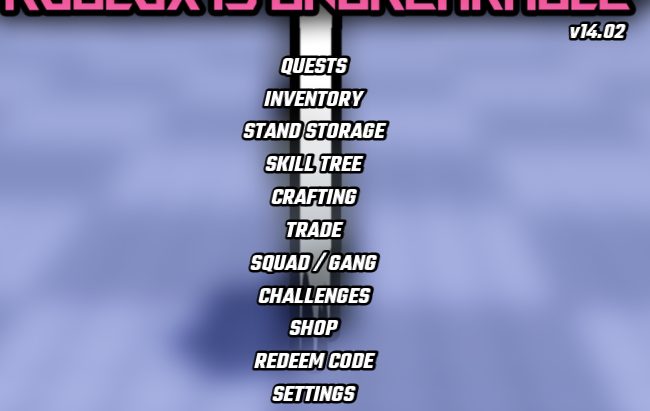
In order to access Gangs, press the SQUAD / GANG button in the In-Game Menu.
Joining a Gang
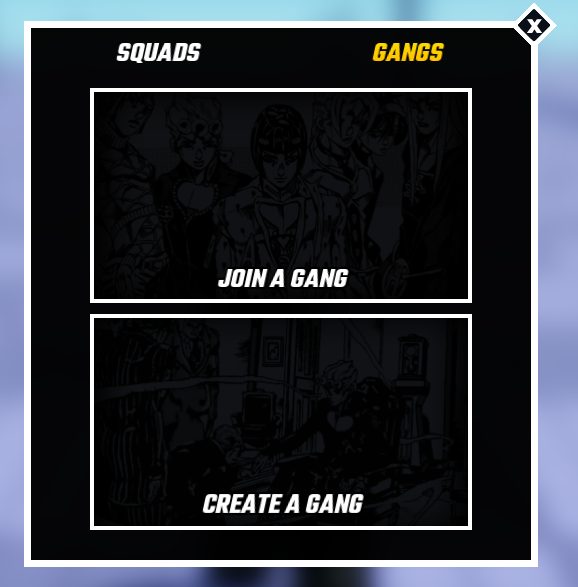
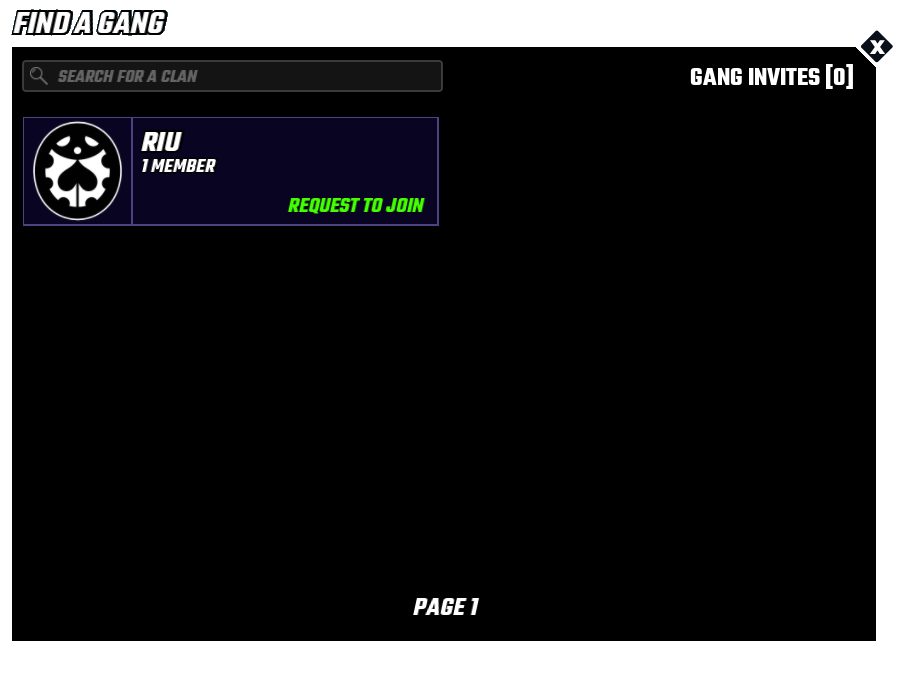
In order to join a Gang, click the “Join A Gang” panel. From there, you can browse through available gangs. Submit a join request to the gang and wait for approval.
Alternative: Getting Invited
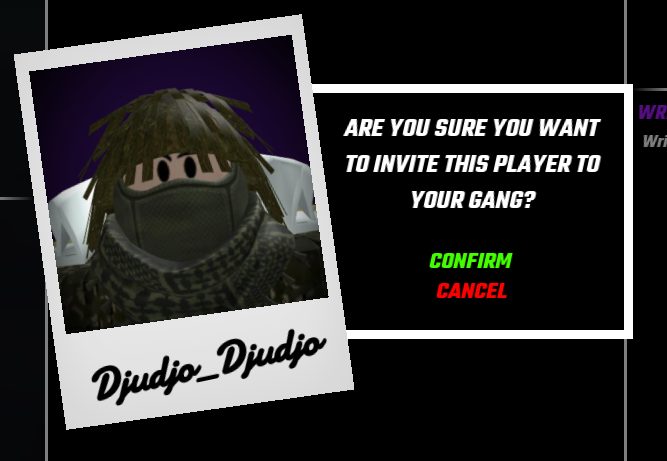
A gang member can send you an invite. Accept the invite to instantly join (no approval needed).
Creating a Gang
In order to create a Gang, click the “Create A Gang” panel. From there, you can enter your Gang Name and confirm to become the Boss.
- Creating a gang costs $250,000.
- Boss: The leader of the gang and has full control.
- Member List: Displays all current gang members and their roles.
- Consigliere - Join Requests and Invite Players .
- Underboss - Join Requests, Invite Players. Info (MOTD & TITLE), and Manage Players.
- Roles (Highest to Lowest): Boss, Underboss, Consigliere, Caporegime, and Soldier.
Member Management
When selecting a player, you can promote them to increase their rank, demote them to lower their rank, or kick them from the gang to remove them entirely.
Only the Boss and Underboss have permission to manage members.
-
When you request to join a gang, the gang’s Boss will see your request under the Join Requests section, where they can choose to either accept or deny it.
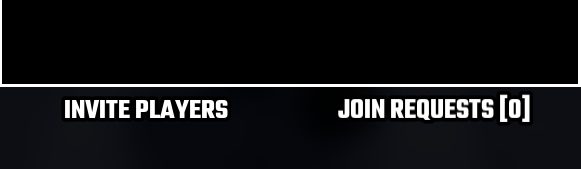
When you own a gang, you will see incoming requests displayed as “Join Requests [#],” allowing you to review and manage players who want to join.
-
Customization
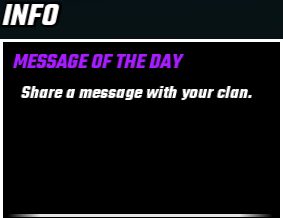
You update the Message of the Day, which is a short message visible to all members and can be used for announcements, reminders, or important updates.
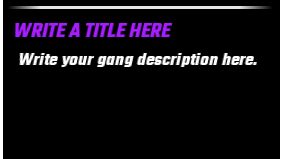
You can also set a title, which acts as a short headline that represents your gang, and a description, where you provide information such as goals, requirements, or rules.
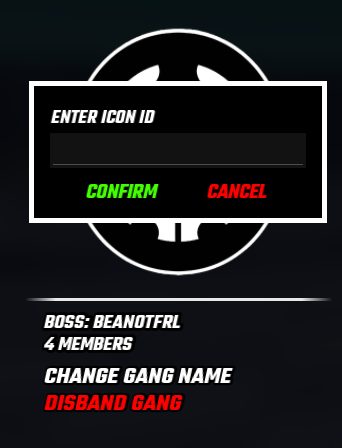
In addition, you have the ability to change the gang icon by clicking on the default icon, giving your group a visual identity that helps it stand out. This uses Roblox Decal Textures.
Important Note
- You can only be in one gang at a time,
- You must leave your current gang before joining another.
- Creating a gang makes you fully responsible for managing it
- Join requests are not instant—you must wait for approval.